What will your website look like?
What will your website look like? discusses the planning and design work you have to do for your website before writing code, including "What information does my website offer?", "What fonts and colors do I want?", and "What does my site do?"
First things first: planning
Before you do anything, you need some ideas. What should your website actually do? A website can do basically anything, but for your first try you should keep things simple. We'll start by creating a simple webpage with a heading, an image, and a few paragraphs.
To begin with, you'll need to answer these questions:
- What is your website about? Do you like dogs, New York, or Pacman?
- What information are you presenting on the subject? Write a title and a few paragraphs, and think of an image you'd like to show on your page.
- What does your website look like, in simple high-level terms? What's the background color? What kind of font is appropriate: formal, cartoony, bold and loud, subtle?
Sketching out your design
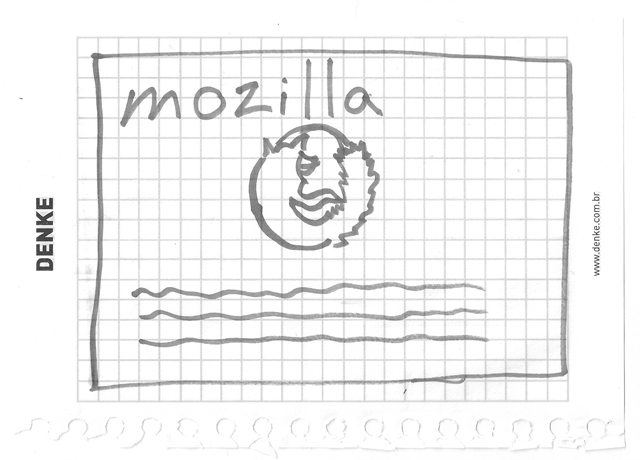
Next, get a pen and paper and sketch out roughly how you want your site to look. For your first simple webpage, there's not much to sketch out, but you should get in the habit of doing this now. It really helps — you don't have to be Van Gogh!
Choosing your assets
At this point, it's good to start putting together the content that will eventually appear on your webpage.
Text
You should still have your paragraphs and title from earlier. Keep these close by.
Theme color
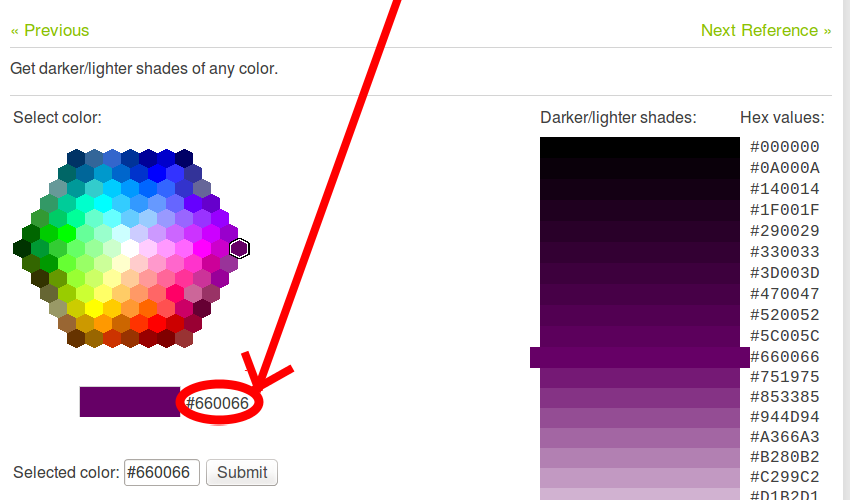
To choose a color, go to the Color Picker and find a color you like. When you click on a color, you'll see a strange six-character code like #660066. That's called a hex(adecimal) code, and represents your color. Copy the code down somewhere safe for now.
Images
To choose an image, go to Google Images and search for something suitable.
- When you find the image you want, click on the image.
- Press the View image button.
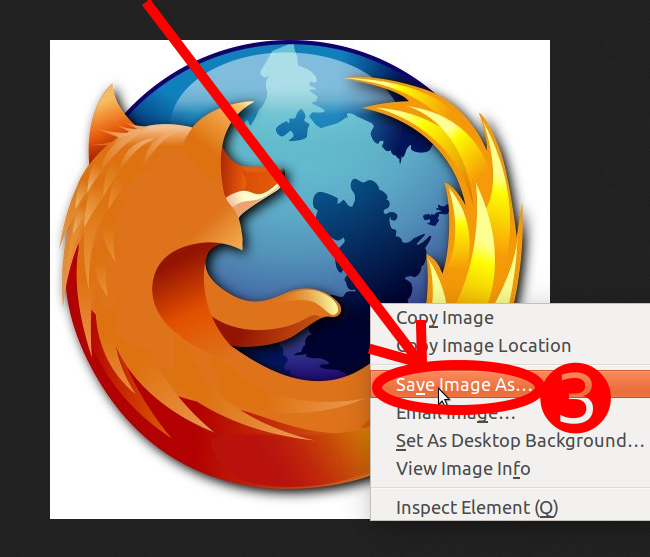
- On the next page, right-click the image (Ctrl + click on a Mac), choose Save Image As..., and choose a safe place to save your image. Alternatively, copy the image's web address from your browser's address bar for later use.
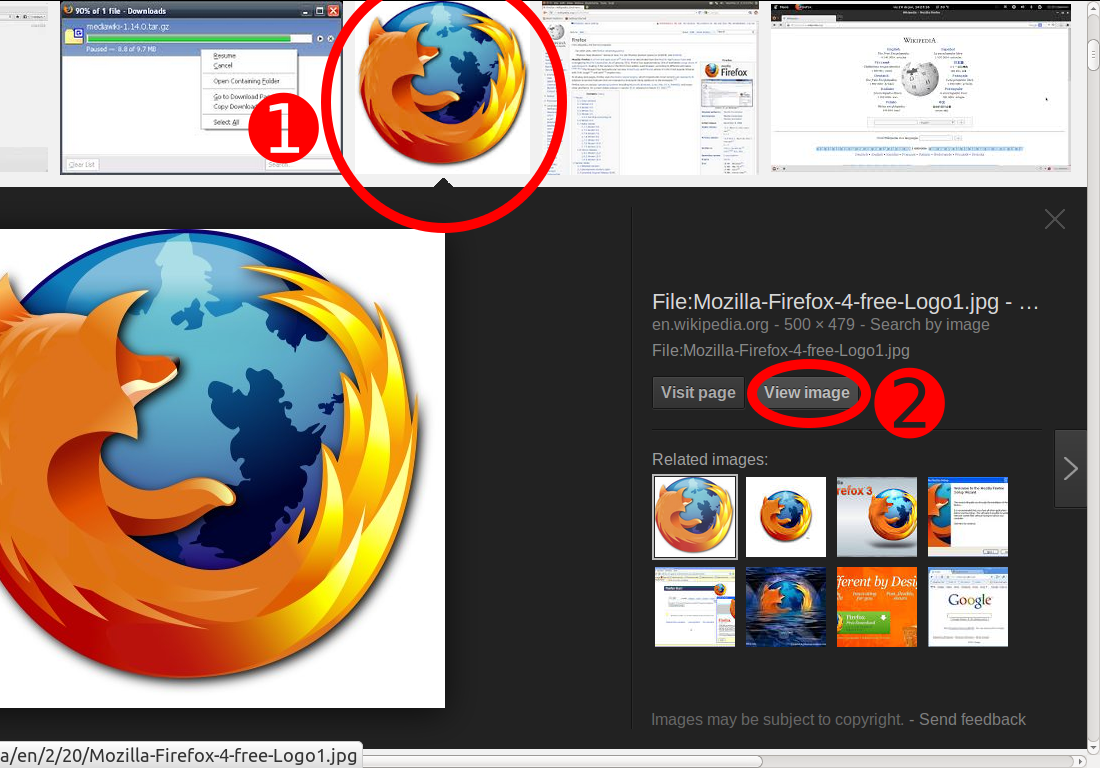
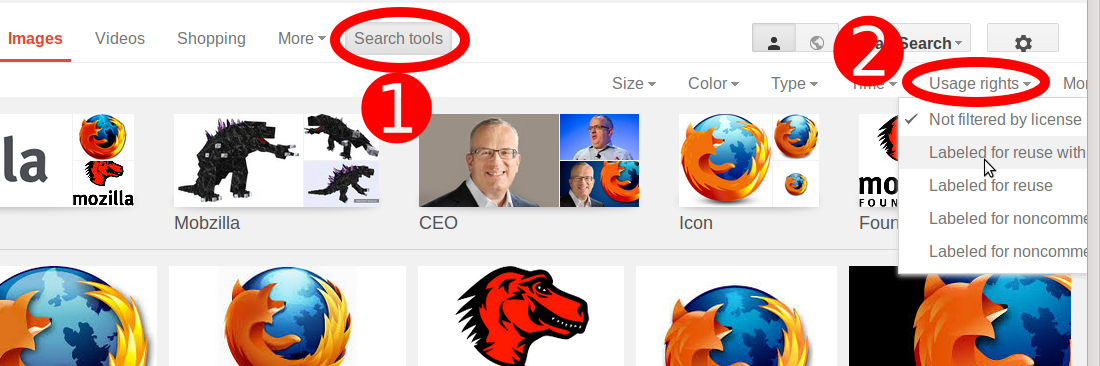
Note: Most images on the web, including in Google Images, are copyrighted. To reduce your likelihood of violating copyright, you can use Google's license filter. Just 1) click on Search tools, then on 2) Usage rights:
Font
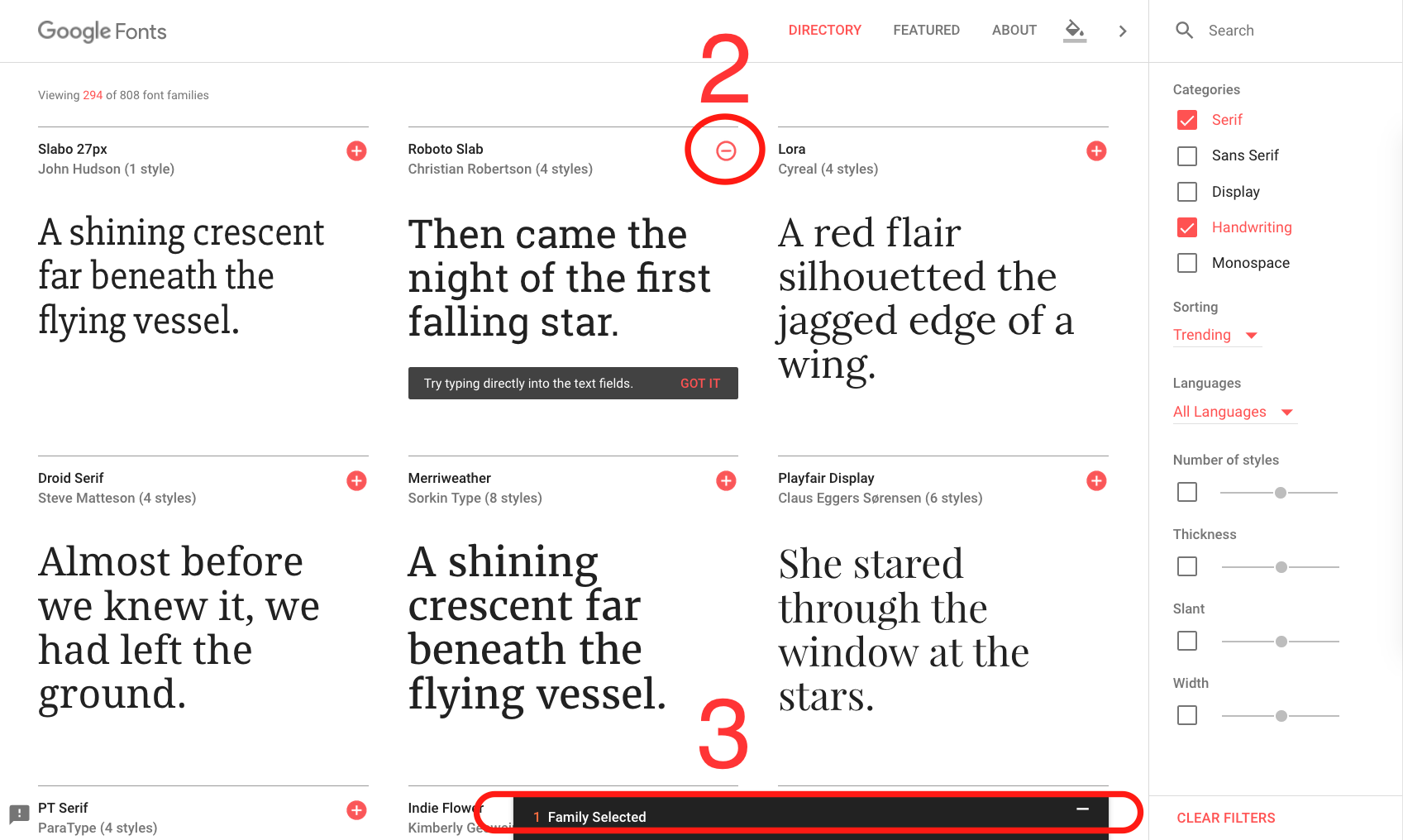
To choose a font:
- Go to Google Fonts and scroll down the list until you find one you like. You can also use the controls on the right to further filter the results.
- Click the "plus" (Add to) icon next to the font you want.
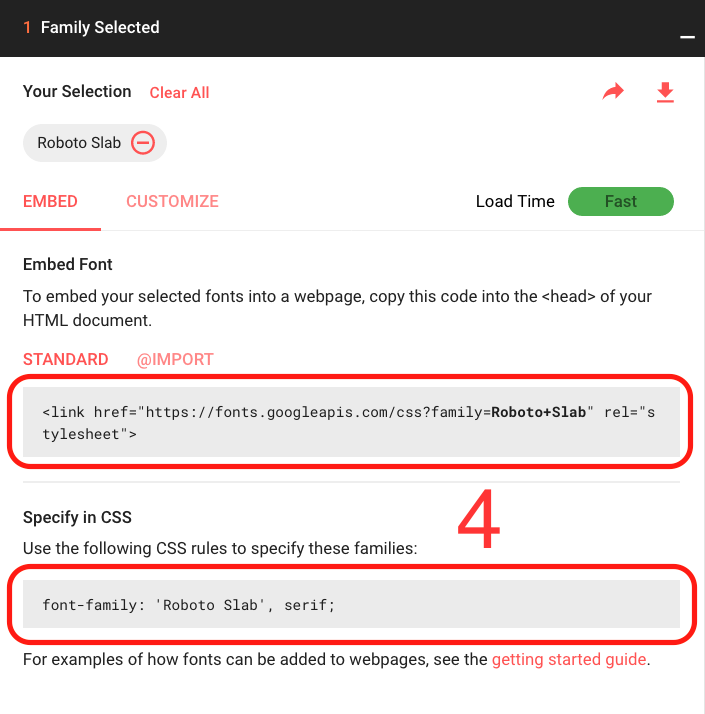
- Click the "* Family Selected" button in the panel at the bottom of the page ("*" depends on how many fonts you selected). In the popup box, you can see and copy the lines of code Google gives you into your text editor to save for later.